
Amazon Redshift
How to Configure Security Groups
- Begin at the Amazon Redshift console navigation pane. Choose Clusters.
- Open your cluster to the Configuration tab.
- Under Cluster Properties → VPC Security Groups choose your security group. It will open in the Amazon EC2 console.
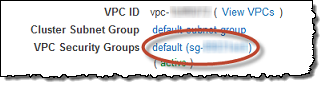
- Choose the Inbound tab.
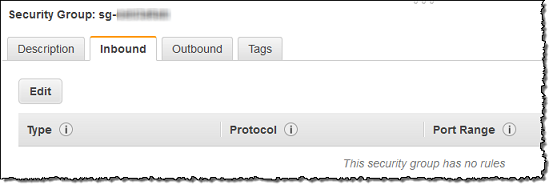
-
Here you can add a rule that allows traffic into your cluster. You can configure this to accept inbound connections from your DataReporter host. Click Edit and then
	- For **Type** choose `Custom TCP Rule`
	- For **Protocol** choose `TCP`
	- For **Port Range** type the same port number that you used when you
	launched the cluster. The default port for Amazon Redshift is `5439`.
	Yours may be different.
	- For **Source** pick `Custom IP` and enter your DataReporter instance's IP
	address. If you use hosted DataReporter enter `52.71.84.157/32`. This is our
	public IP address.
	- Click **Save**