How to schedule a query
You can use scheduled query executions to keep your dashboards updated or to power routine Alerts. By default, your queries will not have a schedule. But this is easy to adjust. In the bottom left corner of the query editor you’ll see the schedule area:
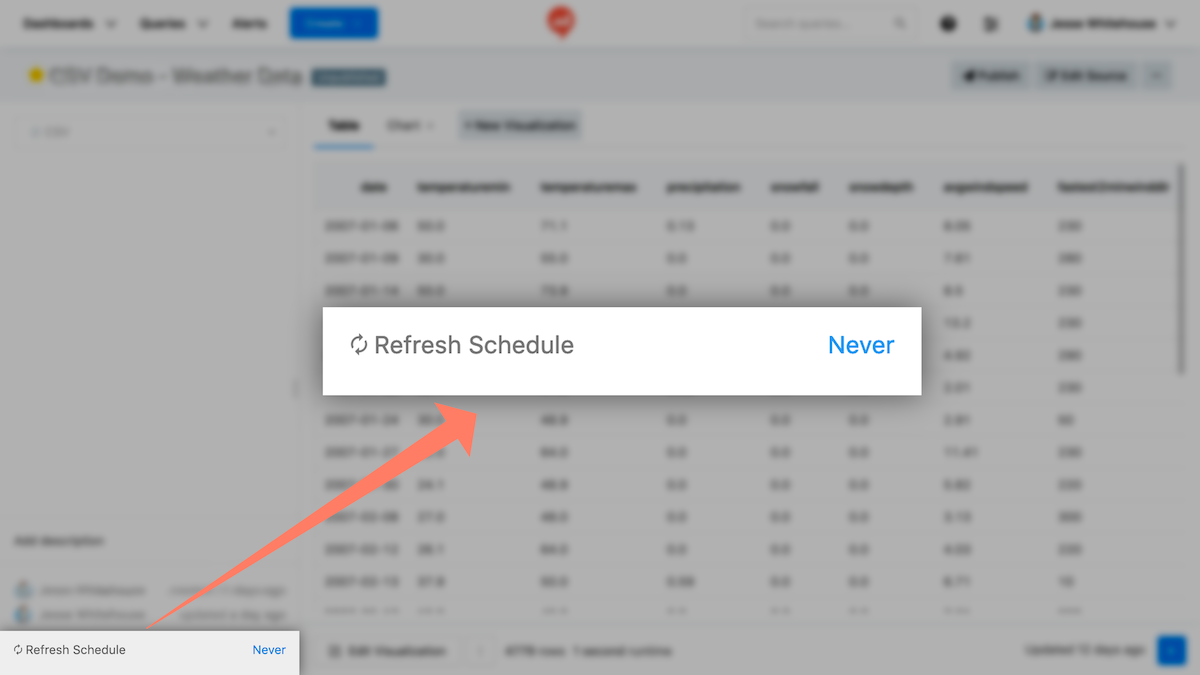
Clicking Never will open a picker with allowed schedule intervals.
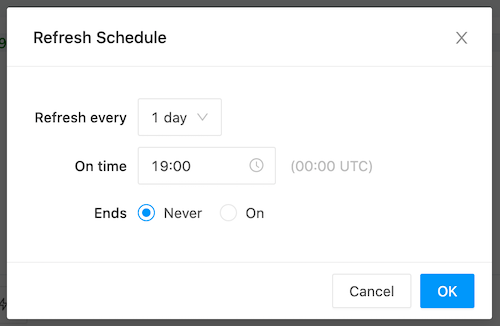
Your query will run automatically once a schedule is set.
Info: When you schedule queries to run at a certain time-of-day, DataReporter converts your selection to UTC using your computer’s local timezone. That means if you want a query to run at a certain time in UTC, you need to adjust the picker by your local offset.
For example, if you want a query to execute at
00:00UTC each day but your current timezone is CDT (UTC-5), you should enter19:00into the scheduler. The UTC value is displayed to the right of your selection to help confirm your math.
Warning: Scheduling queries that use parameters is not currently supported. You can use the DataReporter API and a scheduling system like CRON instead.
Scheduled Query Failure Reports
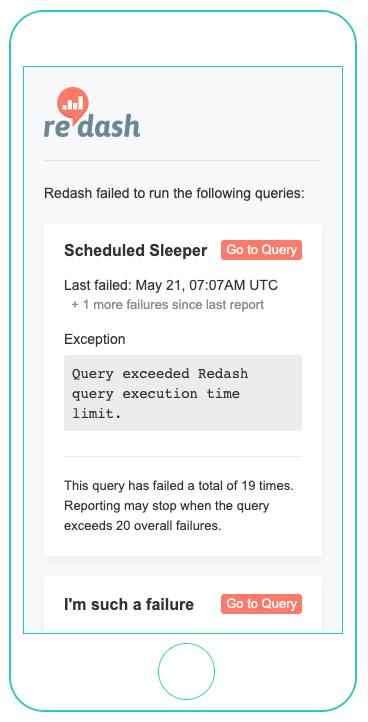
DataReporter V8 added the ability to email query owners once per hour if one or more queries failed. These emails continue until there are no more failures. Failure report emails run on an independent process from the actual query schedules. It may take up to an hour after a failed query execution before DataReporter sends the failure report.
You can toggle failure reports from your organizations settings. Under Feature Flags check Email query owners when scheduled queries fail.